
The Appbot MCP Server connects Appbot’s customer app feedback intelligence to AI tools that support the Model Context Protocol (MCP), including ChatGPT, Claude, Cursor, and custom AI assistants.
Rather than starting with raw customer feedback, Appbot MCP gives AI tools access to Appbot’s structured customer feedback intelligence, including sentiment analysis, topics, feature requests, ratings, review metadata, and historical trends. This allows AI assistants to deliver more accurate, context-rich answers about what customers are saying and how feedback is changing over time.
With Appbot MCP, your team can explore customer feedback using natural language and get instant answers to questions such as:
- What are the biggest drivers of negative reviews this month?
- Which feature requests have increased over the last 90 days?
- What issues are causing low ratings among iOS users?
- How has sentiment toward our latest release changed over time?
Adding the Ask Appbot MCP to Claude
Before you can add Appbot to your Enterprise or Team Claude account connectors need to be enabled on the account.
Enable Custom Connectors
For Enterprise and Team plans, the Organization Owner/ Primary Owner must first approve the custom connector via Settings > Organization settings > Connectors > Add > Custom. This only needs to be done once.
Add Custom Connectors
-
Navigate to Organization settings > Connectors.
-
Click the “Add custom connector” button.

-
Hover over “Custom,” then select “Web.”
-
Add https://api.appbot.co/mcp server URL.
-
Optionally, click “Advanced settings” to specify an OAuth Client ID and OAuth Client Secret for your server.
-
Finish configuring your connector by clicking “Add.”
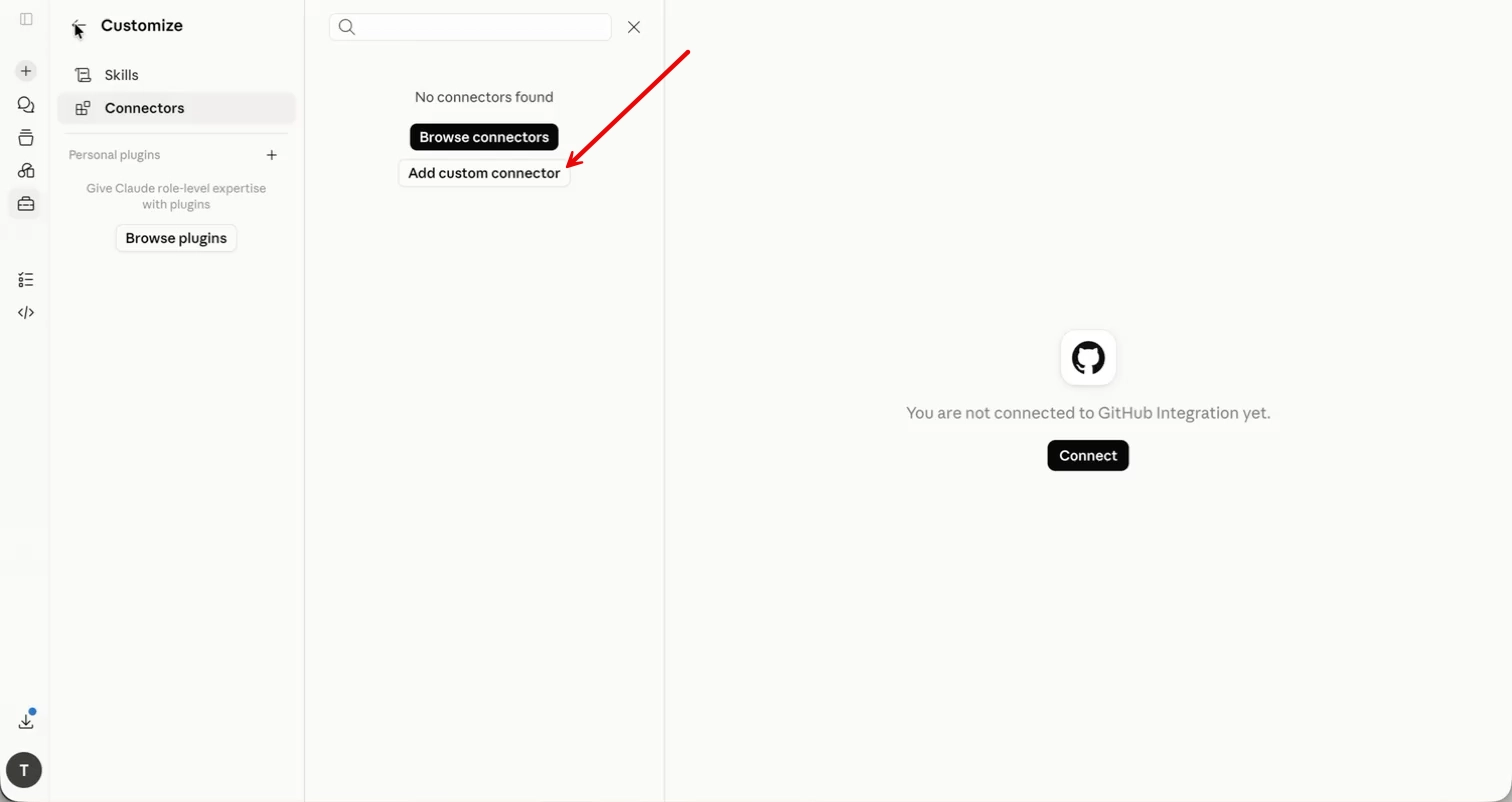
Steps for members after connector is configured:
-
-
Navigate to Customize > Connectors
-
Find the custom connector your Owner added in the list (it will have a “Custom” label).
-
Click “Connect” to authenticate and start using the connector with Claude.
-
For Pro and Max plans
If you are using an individual Pro or Max plan, follow these steps to add a custom connector:
-
Navigate to Customize > Connectors
-
Click “+” then “Add custom connector.”
-
Add your connector’s remote MCP server URL.
-
Optionally, click “Advanced settings” to specify an OAuth Client ID and OAuth Client Secret for your server.
-
Finish configuring your connector by clicking “Add.”
Enabling connectors after configuration
You can enable connectors for individual conversations via the “+” button on the lower left of your chat interface, then “Connectors.” You’ll see your configured connectors with toggles allowing you to enable/disable them per conversation.
FAQ: Appbot MCP
What is the Appbot MCP Server?
The Appbot MCP Server allows AI tools that support the Model Context Protocol (MCP) to securely access customer feedback intelligence from Appbot.
Once connected, AI assistants such as ChatGPT, Claude, Cursor, and custom AI tools can answer questions about your customer feedback using natural language.
What is MCP?
Model Context Protocol (MCP) is an open standard that allows AI assistants like ChatGPT, Claude, Cursor, and custom AI tools to securely connect to external data sources and business applications. By connecting to the Appbot MCP Server, these AI tools can access Appbot’s customer feedback intelligence and answer questions about your customer feedback using natural language.
If your Claude server is on a private network
You’ll need to allowlist Anthropic’s IP addresses in your firewall so inbound connections from Claude can reach your server. See Anthropic IP addresses for the current ranges.
Who can add the Appbot connector on an Enterprise plan?
Only an organization Owner or Primary Owner. Regular members can’t add custom connectors on Team or Enterprise plans, they can only connect to one an Owner has already added.
If the Owner adds it once, does that turn it on for everyone?
No. Adding it registers the connector for the organization, but each member still has to connect and authenticate with their own Appbot credentials. This keeps Claude scoped to the data each person can already access in Appbot.
