
Keeping up with App Store feedback is critical for product teams. Reviews often contain bug reports, feature requests, and valuable customer insights, but manually checking them wastes time and slows down response.
A better approach is to send App Store reviews directly to Slack automatically, so your team sees feedback in real time and can act quickly.
In this guide, we’ll show you how to set up App Store reviews in Slack, and how teams use this workflow to improve products faster.
What an App Store Reviews Slack Workflow Looks Like
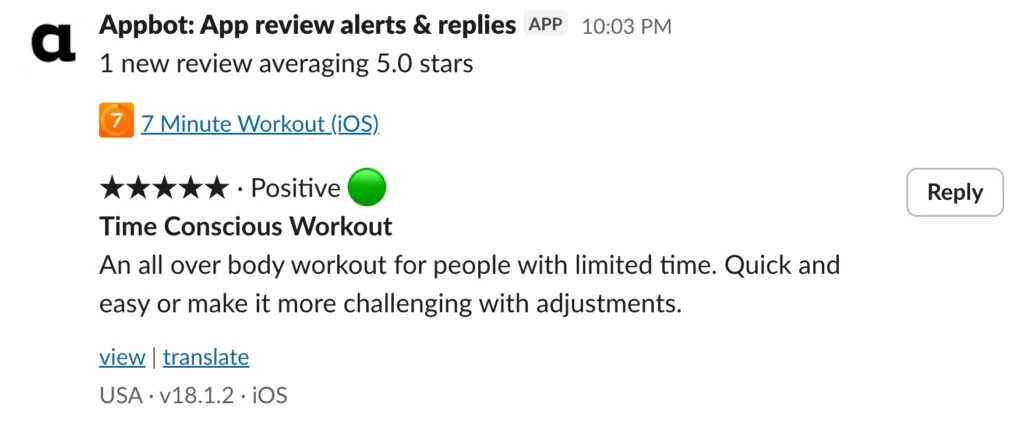
Once connected, every new review appears in Slack with important details, including:
- App name
- Star rating
- Review text
- Country (iOS) or Language (Google)
- App version – for iOS and Google if you have connected your Google Play Developer Console
- Link to respond in the App Store – if you have connected the developer account.
Example Slack message:
How to Automatically Send App Store Reviews to Slack
The easiest way to automate this workflow is with a review monitoring tool like Appbot.
All plans can send app reviews to Slack for monitoring. If you would like to reply to the app reviews in Slack you need a Large or Premium plan and will first need to configure connections to App Store Connect and/or the Google Play Developer Console for all the apps you would like to reply to in Appbot.
This process will need to be followed for each app that you would like to send to Slack.
- Login to your Appbot account and navigation to the Manage Sources tab in the top right of the page

- Find the app you want to integrate with Slack in your sources list. Select the ‘(+)’ button under the Integrations column.

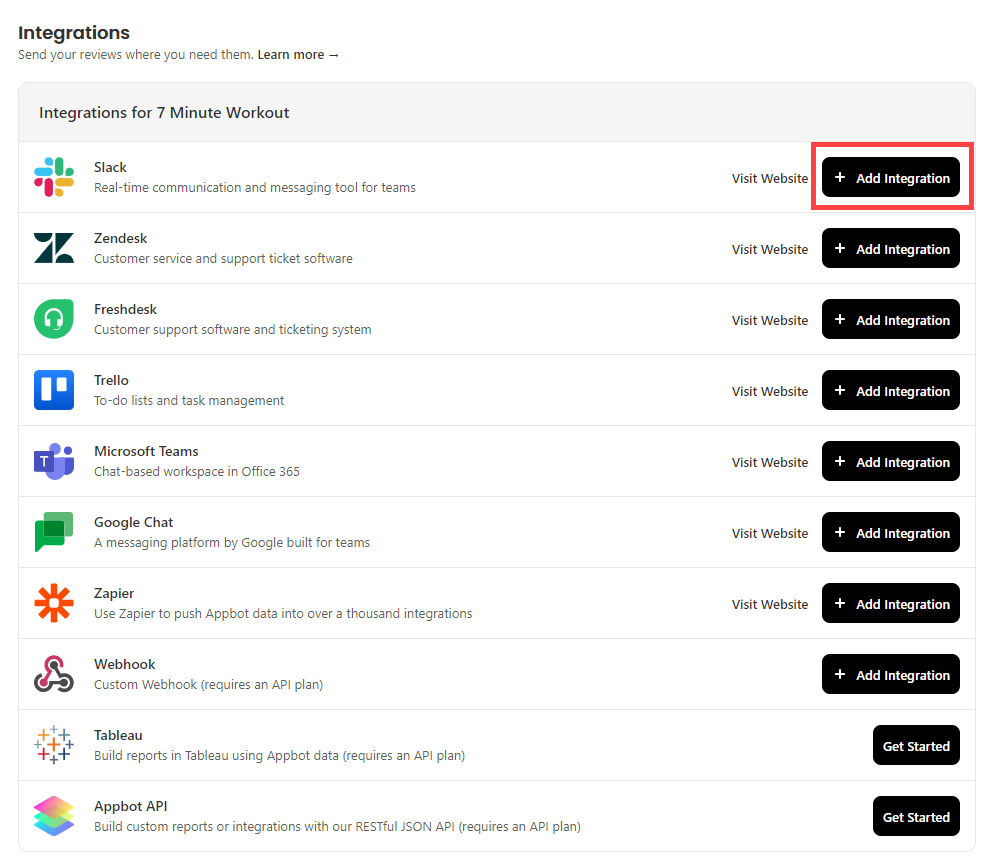
- Find Slack and press on the blue ‘Add Integration’ button.

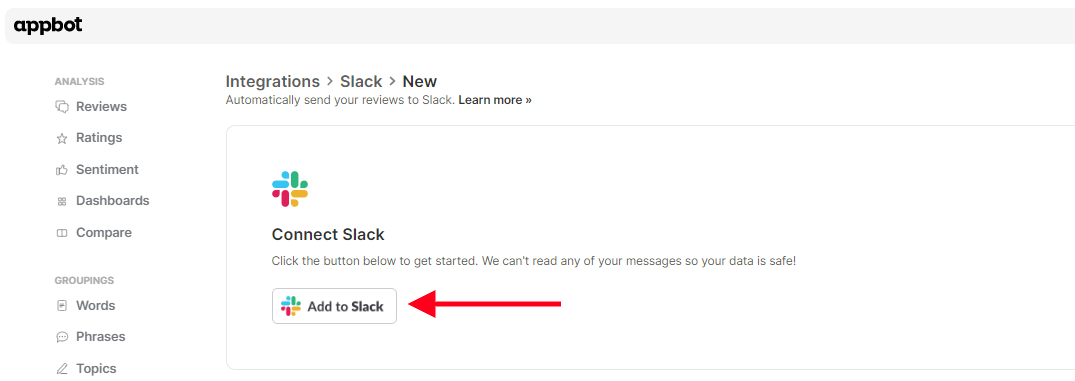
- Press ‘Add to Slack’.

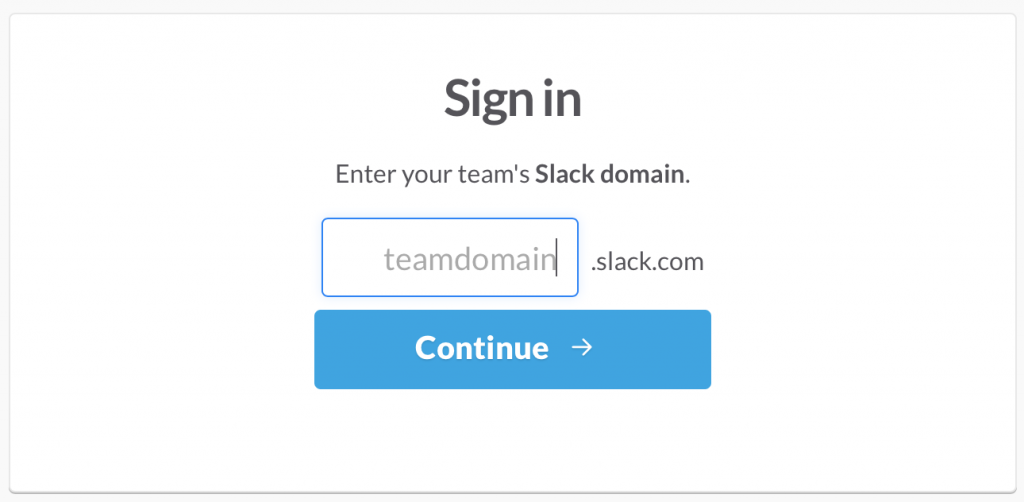
- Sign in to your Slack account.

- Choose which channel you would like your reviews sent to and press ‘Allow’.

- Now you can set up which reviews you would like us to send to Slack, and whether or not you’d like your Weekly Summary sent to Slack. Press ‘Save’ once you’re done.


Tip: You’ll receive a warning message if the review volume is high. We recommended you use the filters so you’re only receiving the reviews that are most important to you.

Tip: If you’d like to filter to certain countries (languages on Google Play) or by Topic, select to filter and then use the check boxes to choose the options.



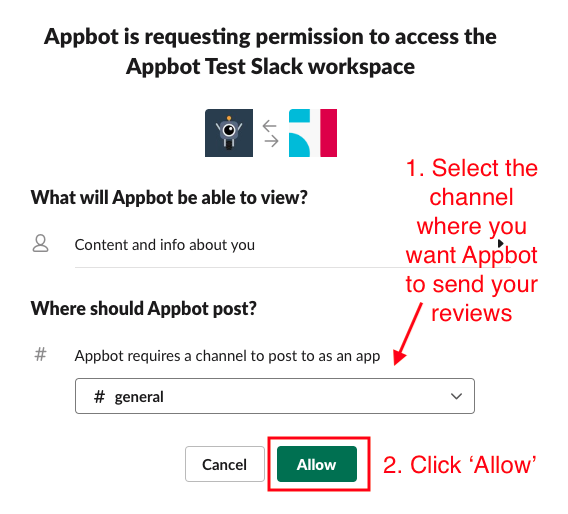
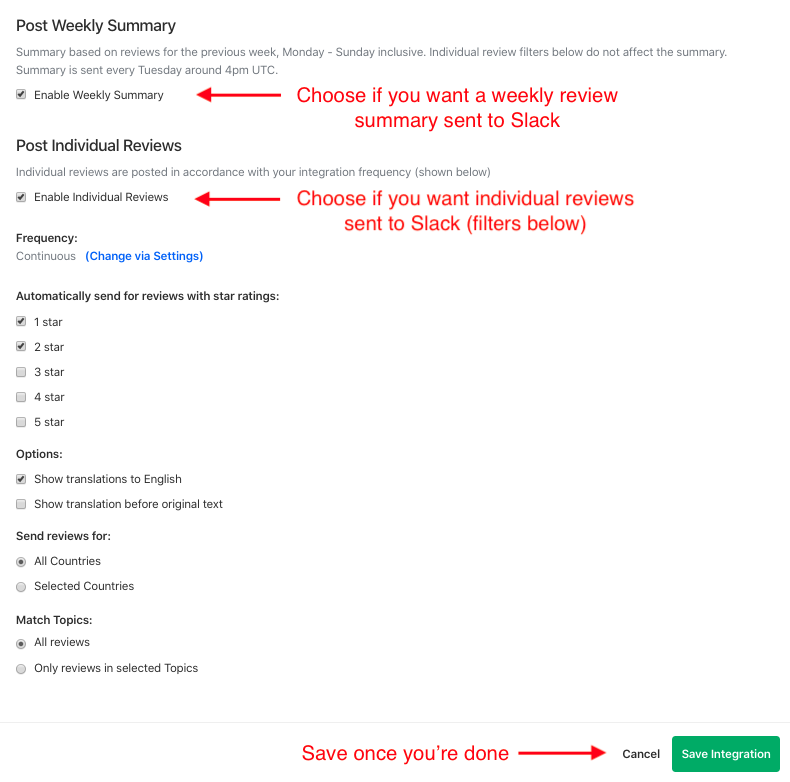
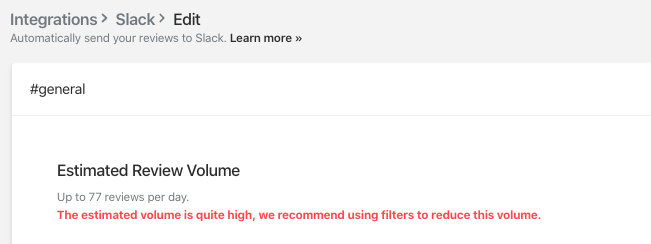
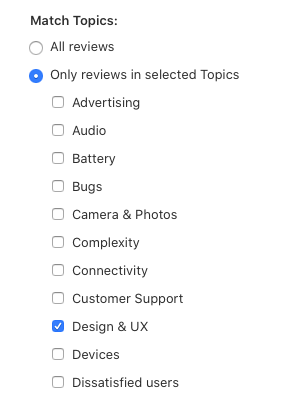
Congratulations, you’ve set up your first Appbot integration with Slack! Have more app reviews you need sent to Slack? You will need to repeat the process for each app. Then next time we fetch your reviews, we’ll post them in your chosen Slack channel.
How to reply to reviews in Slack
There are two ways to reply to reviews that appear in Slack.
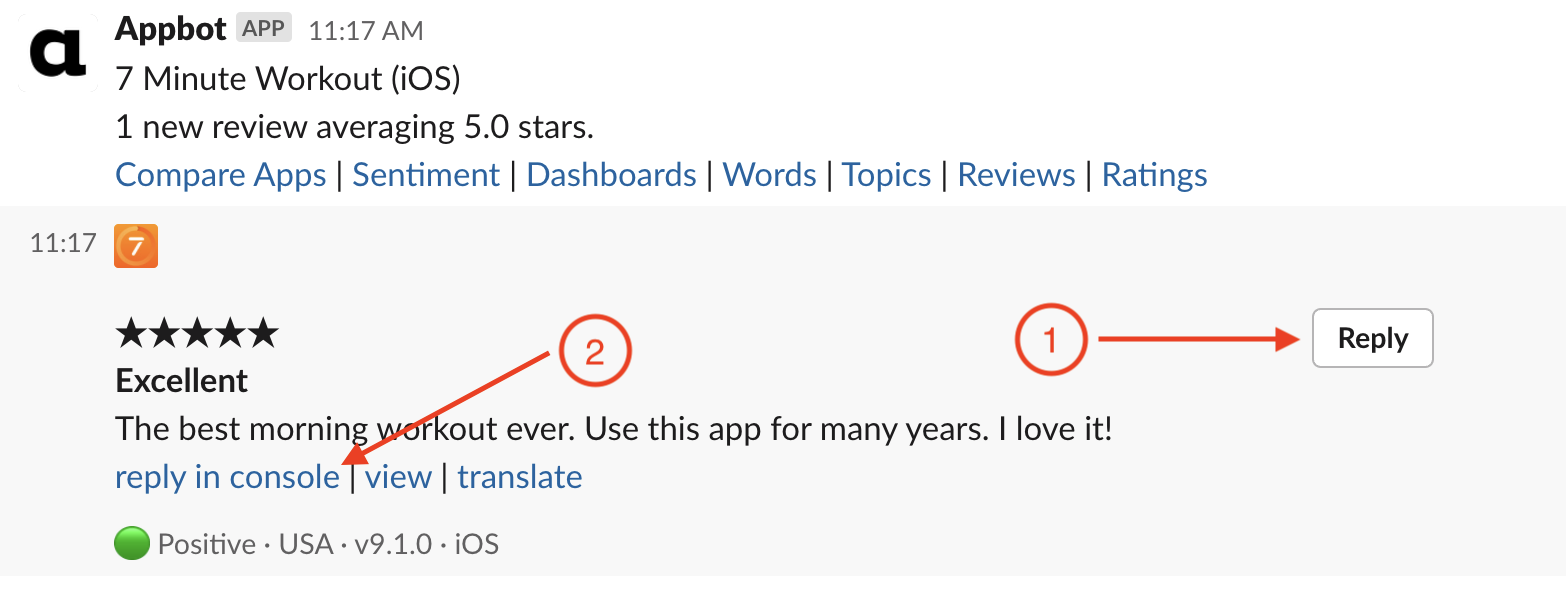
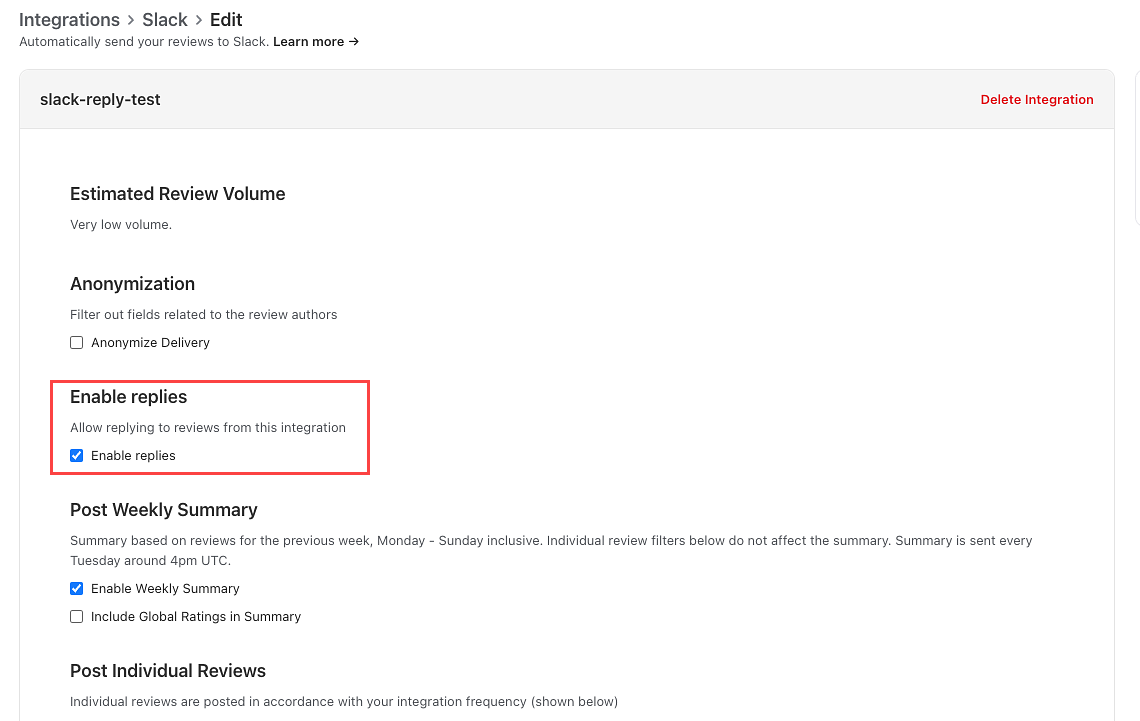
- For users on the Large plan and higher, you can reply without leaving Slack. You will need to link your Appbot account to App Store Connect and/or the Google Play Developer Console before you can reply. Once these connections are configured you will see the option to Enable Replies in the Edit screen for this integration with Slack. Select Enable Replies to turn it on:

You will then see the Reply button (labelled 1 above), and anyone in your Slack account can use this to reply to reviews. - For users on Small and Medium plans you can reply to reviews by following the “reply in console” link to the relevant app store (labelled 2 above). You will need to have access to the app stores to follow these links.
How to have the email summaries sent to Slack
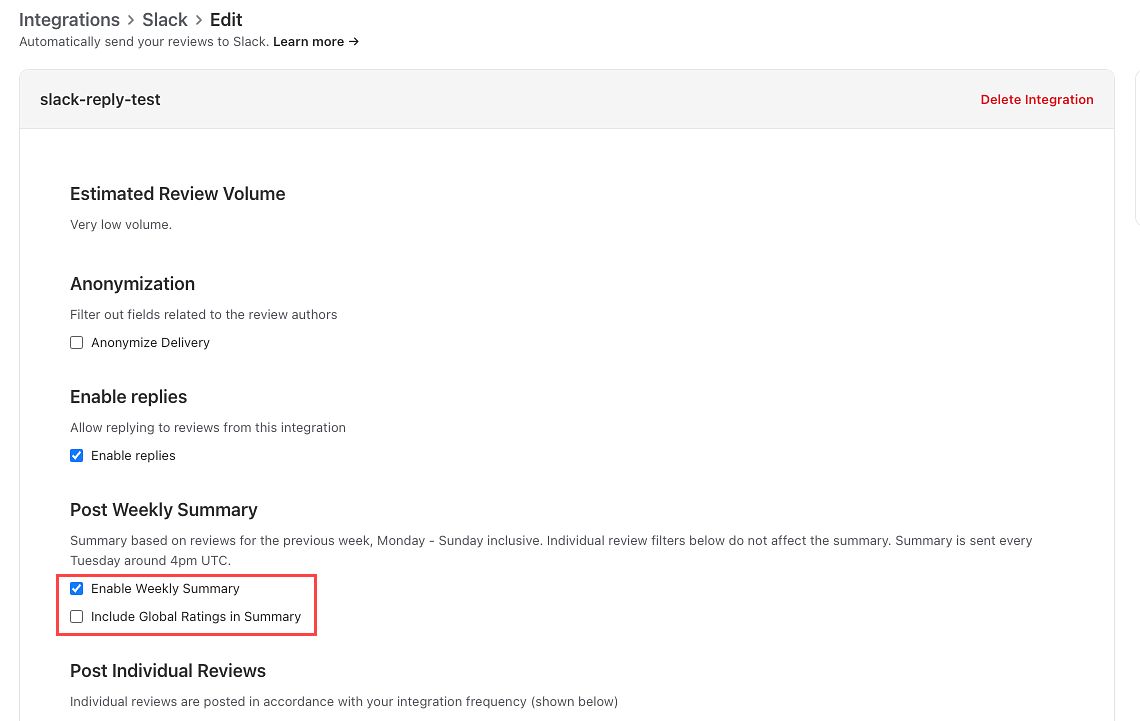
You can have the weekly email summaries sent to Slack. The summaries are based on the reviews for the previous week (Monday – Sunday inclusive). Filters selected in the Integration do not affect the summary. They are sent to Slack every Tuesday around 4pm (UTC).
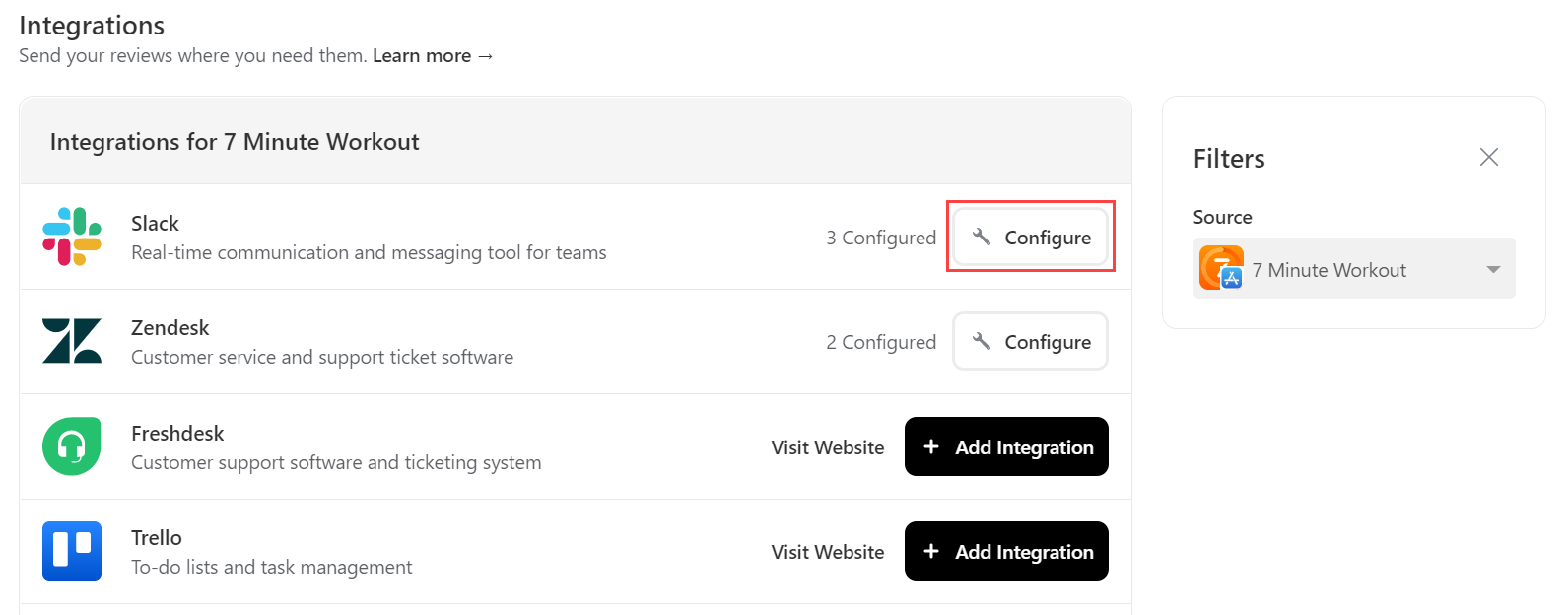
- Go to the Integrations page.
- Click on ‘Configure’ next to Slack.

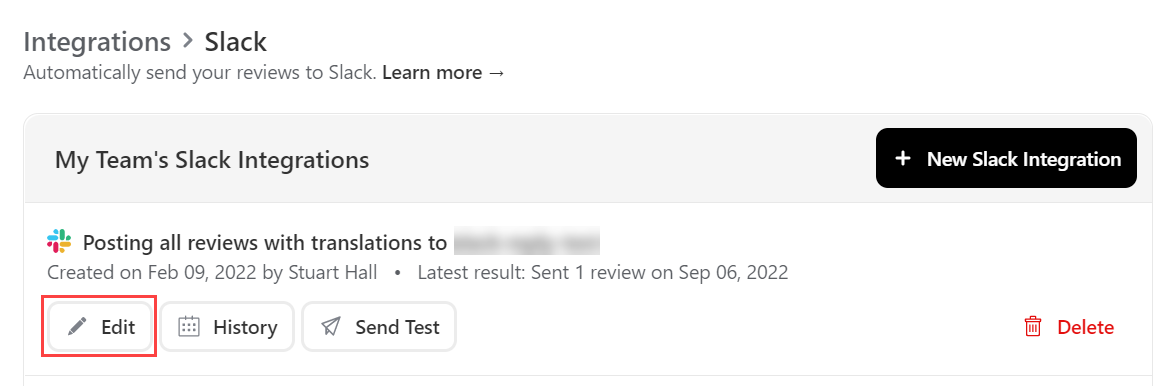
- Click on the ‘Edit’ button for the integration with Slack.

- Select ‘Enable Weekly Summary’.

- You can also enable ‘Include Global Ratings in Summary’.
- Hit the ‘Save’ button.
FAQ – Sending app reviews to Slack
Team Access and Accounts
Remember that each person who will be replying to reviews will need to be a Team Leader or Team Member on your Appbot account. We require each agent to have an Appbot account as we provide unlimited replies and don’t charge per reply, we charge per user/agent. Sharing accounts on Appbot is not allowed, per our terms of service. Compliance with this clause is actively monitored and enforced. Account holders found violating this clause will be subject to suspension of their account without notice.
Can Appbot access my Slack data?
No. Appbot has no read access to your Slack instance. The only scope we request from Slack is incoming-webhook.
We interact with Slack in two ways:
- Sending reviews – We do this by sending requests to a Slack Webhook URL which is configured to write messages to a Slack channel of your choosing.
- Receiving replies – If you reply to a review from within Slack, which is disabled by default, we receive a Webhook response from Slack with the reply information to post to the stores.
Connecting Google Play Console for an existing Slack integration
If you have existing Slack integrations for Google Play apps, and you later connect your Google Play Console you will need to delete the existing integrations and re-add them, even if you are not planning on replying to reviews. This is because Google differentiates between public and private ratings and reviews. When the Google Play Console is not connected you are accessing public reviews after they have been moderated, when you have connected the Google Play Console you are accessing private reviews before moderation.
If you need any further assistance in setting up Slack monitoring for your app store reviews, don’t hesitate to contact us with any questions. You can also check out our FAQ section here.
