
Every reply you send from Appbot shows all the details right in the app review thread: who wrote it, how it was sent, and whether the app store accepted it. This article explains where to find those details on the Reviews page and what each one means.
Looking for instructions on how to send a app review reply in the first place? See Ways to reply to reviews using Appbot.
App Reviews in Appbot
All of your app reviews live on the Reviews page.

It lists the app reviews that match the selected filters on the right. Listed with newest first by default and grouped by the date it was published.
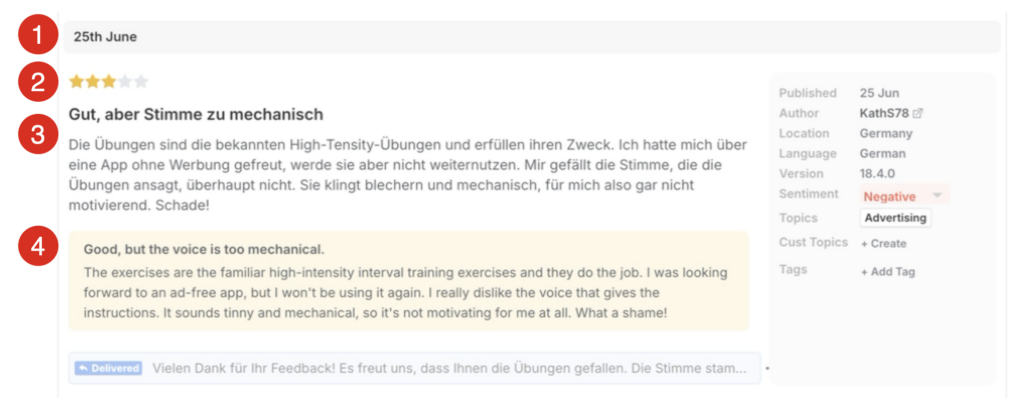
Each review is laid out the same way.
- Date – published in the app store.
- Star rating – the rating the reviewer left, out of five
- Title and review text – exactly as the reviewer wrote them
- Translation – for reviews written in another language that have been translated to English.
App Review Reply Status at a Glance
Any review that has been replied to shows a preview of the reply at the bottom, with a reply status label on the left showing where that reply has got to:

This means you can scan a page of reviews and see at a glance which replies have landed, without having to open each app review thread.
Delivery status
The status label on the reply preview shows the current status of the reply.
- Delivered: means the app store accepted the reply and it is live on your store listing. No further action needed.
- Error: means that we have been unable to deliver the app review reply to the store successfully.
- Draft: a draft reply has been created but needs to be reviewed and sent.
Full details in the App Review Thread
When you select an The Review Thread shows the original review, its translation where relevant, and your reply in full:
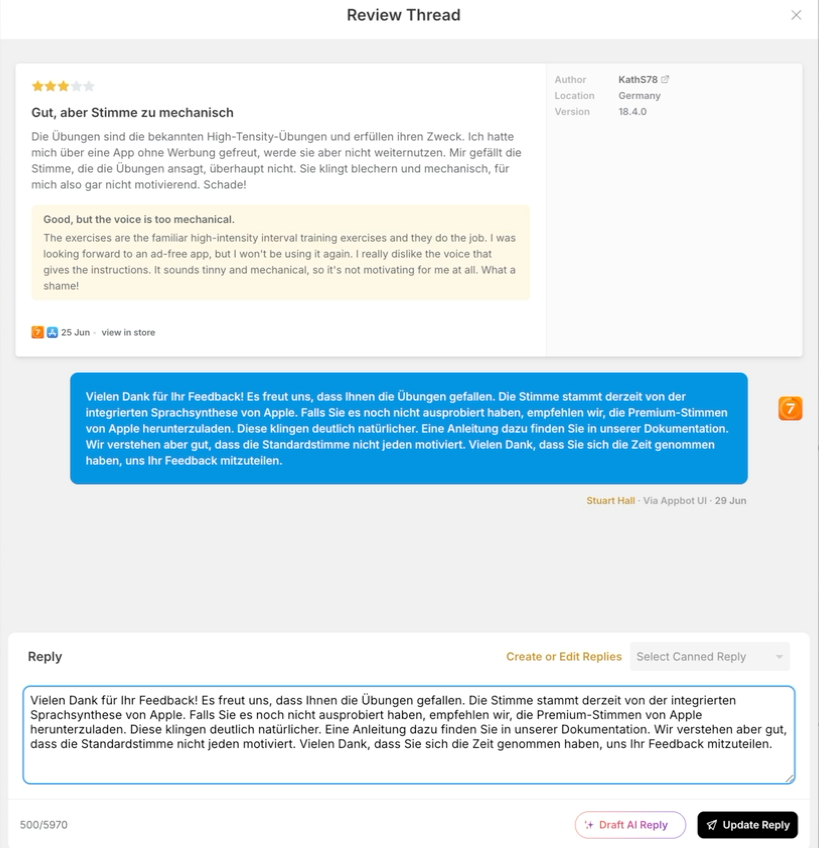
Who sent the reply
Underneath the reply you’ll see a single line with three pieces of information, separated by dots:
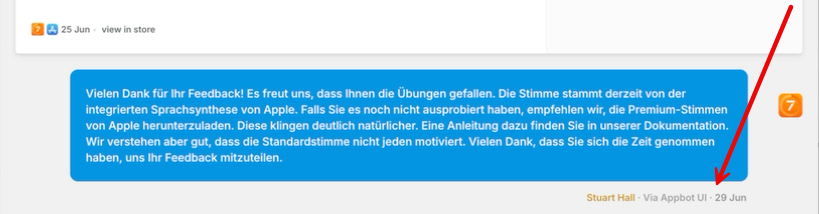
Reading left to right:
- The Replier: that’s who sent the reply if a team member. If sent via a CRM or Integration like Zendesk or Slack this will be blank.
- Reply Method:
- Appbot UI,
- AI Auto Reply,
- Canned Reply,
- CRM or Integration Name (like Zendesk Reply, Slack Reply etc).
- Reply Date: when the reply was sent.
Why an App Review Reply May Fail
App review replies may fail due to several different reasons:
- The review is no longer available. If the reviewer deleted their review, or the app store removed it through the moderation process, there is nothing left to reply to.
- The app store was busy or unavailable. The stores occasionally throttle or refuse requests when they’re under load. This is temporary and nothing to do with your account or your reply, we will try sending it again shortly.
- App Store Connection. Check the Link App Store page to see whether your App Store Connect or Google Play Console connection is returning an error that needs correction.
- The reply breached a store rule. Both stores enforce length limits and content policies, and will reject replies that fall outside them. The character counter beneath the reply box shows the limit for that store as you type.
Filter App Reviews by Reply Status
The filter allows you to filter the reviews by Reply Status:
- Any Reply State
- Replied to
- Have Not Replied to
- Has Draft Reply
- Reply Failed
Reply Export Reports
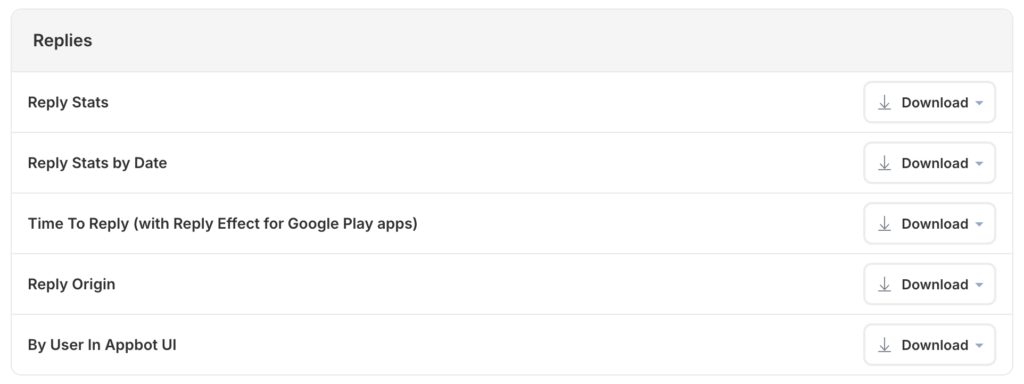
Gain deeper insights into your app review workflow with three new reply reports:
- Reply Origin – See how replies are being created within Appbot, with a breakdown of reply methods such as manual replies, AI Replies, Auto Replies, and other Appbot reply features.
- Replies by User – Track how many replies each team member has made through the Appbot interface.
- Time to Reply – Measure how quickly your team responds to app reviews, with Google review reply effect reporting included.
Access them from the Exports Report page. The reports will only be available for apps that have had the app developer account connected to Appbot.
Frequently Asked Questions
Does this apply to app review replies I sent before the feature launched?
Yes, these details are shown for your existing replies as well as new ones.
Does it work for both iOS and Google Play?
Yes it works for both of the app stores.
Can Team Members see reply details, or only Team Leaders?
All team members can see the reply details in the reviews.
Will the reviewer see who replied?
No. The name is only visible inside Appbot. The app stores publish replies under your developer name, not an individual’s.
Why does it not have a name of the replier?
This means it was replied to via a CRM or Integration which does not provide an agent name.
It says Auto Reply – how can I check the rules for the reply?
You can see the Auto Reply rules you have configured on the Auto Replies page.
