
Appbot supports replying to reviews for:
- Apple App Store Connect
- Google Play Developer Console
To reply to app reviews from within Appbot, you must connect the relevant app developer account and ensure replies are enabled.
Reply Options Visible
If the app developer account for the app has been successfully connected and configured when you open the app review it will show the reply options:
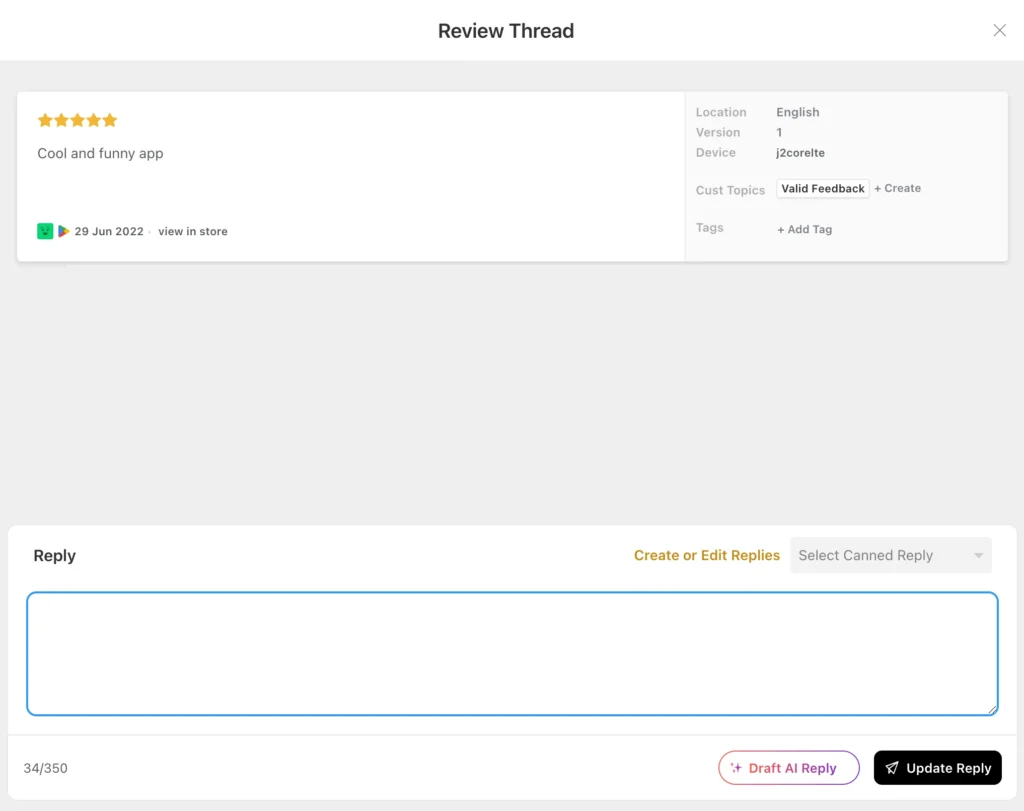
Reply Options Not Visible
If it has not been connected to the app developer account or replies are not enabled, it will not show the reply options and instead show you the prompt to connect or to reply in the app developer console account.

Check if the Developer Account is Connected
You can verify whether a developer account has been connected successfully from the Link App Stores page in Appbot.
If the account is not connected, configure a connection to:
for all apps you want to manage and reply to in Appbot.
App Not Listed Under Detected Apps
When you have successfully connected an app developer account to Appbot it will show all the Detected Apps – all apps that the developer account has permission to access in Appbot.
If the app is not listed, it usually means one of the following:
- The app belongs to a different developer account which has not been connected to Appbot.
- The app was not included in the permissions granted to the connected account
To resolve this, ensure the connected developer account has permission to access the app in App Store Connect or Google Play Console. Check out common issues with linked accounts and their solutions.
Check for Fetch Issues
If the app appears connected but replies still do not work- check whether Appbot is showing any fetch issues or error messages

If you select Fetch Issues, it will display the error message returned by the App Store or Google Play Console.
These error messages are often caused by:
- Missing app permissions
- Incorrect API configuration
- Invalid or expired credentials
- Developer account access restrictions
Reviewing the fetch issue message can help identify which configuration or permission setting needs to be updated in the developer account.
Check if Replies Are Enabled
Replies need to be enabled for each developer account.
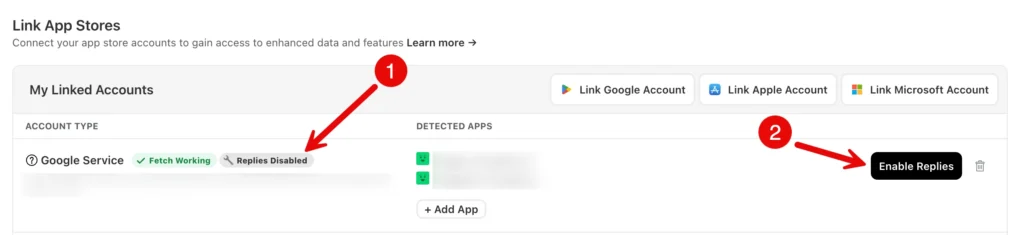 If it is disabled and simply select the Enable Replies button. The reply options will then appear on the app reviews.
Still Having Issues?
If you have gone through all of the above and are still having issues please contact our friendly support team for assistance.
When contacting support, it can help to include:
- The URL of the app in Appbot and
- Screenshots showing any errors or issues
